
Nodes
Nodes are the building blocks of every Wire patch.
This article covers the different types of node, how inlets and outlets work, what collections are, and how data flows through your patch.
Input Nodes
Input nodes bring data from outside into Wire.
This can be information from the host, like FFT, parametric data or slices.
The simplest example is the Texture Input node.
It takes the texture from the host and feeds it through your patch.
This is the cornerstone of building effects.
The Trigger Input node is less obvious. Clicking its button sends out a trigger, taking something from outside Wire (you, clicking) and turning it into data inside Wire (the trigger signal).
 Input Nodes
Output Nodes
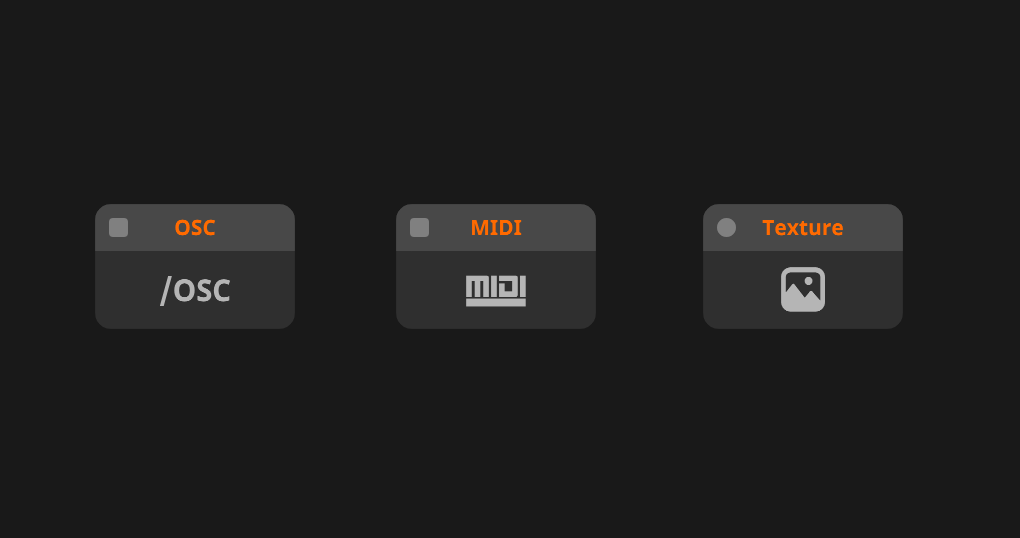
Output nodes send data from your patch to something outside of Wire.
The Texture Output node, for example, takes your image and sends it to the host.
 Output Nodes
General Nodes
General nodes are the meat and potatoes of Wire.
They deal with data, textures, arrays and shapes - modulating, displacing, mixing, comparing and doing the hard math for you.
 Various Nodes
Comments
The Comment node has no inlets or outlets.
It's used to add written notes to your patch, explaining to yourself or others how things work.
Disable the fill toggle in the node panel to make a comment hollow.
Nodes can be placed inside that hollow space, which lets you divide your patch into sections. The node panel also has options for text size and alignment.
 Hollow comments are great for encapsulating parts of your patch
Inlets and outlets
Every node has one or more inlets and outlets.
These are the dots next to the node's name.
Inlets are always on the left, outlets always on the right.
Hover over an inlet or outlet to see a list of the data types it accepts.
When data is flowing through, the current value is previewed above that list.
You can set values manually by clicking the value and typing a new one, dragging it up and down, or adjusting it in the node panel.
Connecting
Click an outlet and then an inlet to connect them.
This works in either direction.
Connected to the wrong inlet?
Click it again and connect it where you meant to.
You can also drag a cord onto an existing cord to replace that connection.
This works with every type of flow. W
ith event flow, hold ALT or ⌥ while you do it and the cord is added to the existing connection instead of replacing it.
 Replacing a connection
Collections
Data that contains multiple values of the same type is called a collection.
Collections let you do repeated work without building repeated nodes.
The values inside are always of the same type — you can't join a color and a shape into one collection.
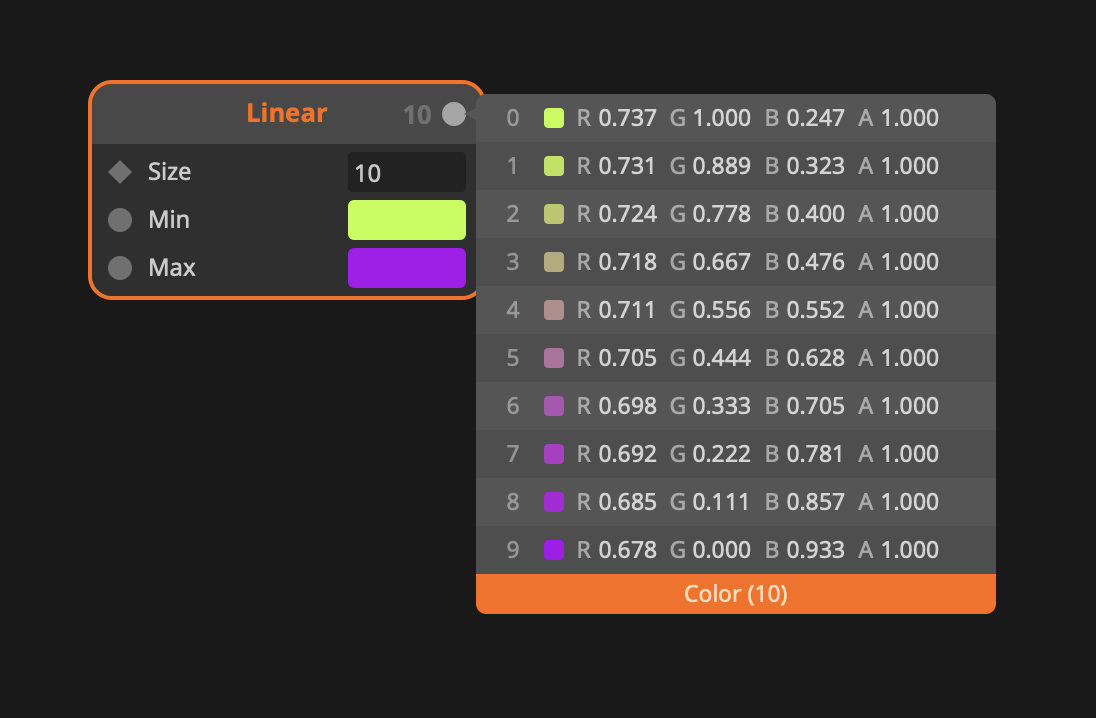 This Linear node returns a collection of 10 colors
Cords that carry a collection are dashed.
Hover over an inlet or outlet to preview the collection and see how many values it holds. Collections can also be previewed on the node itself.
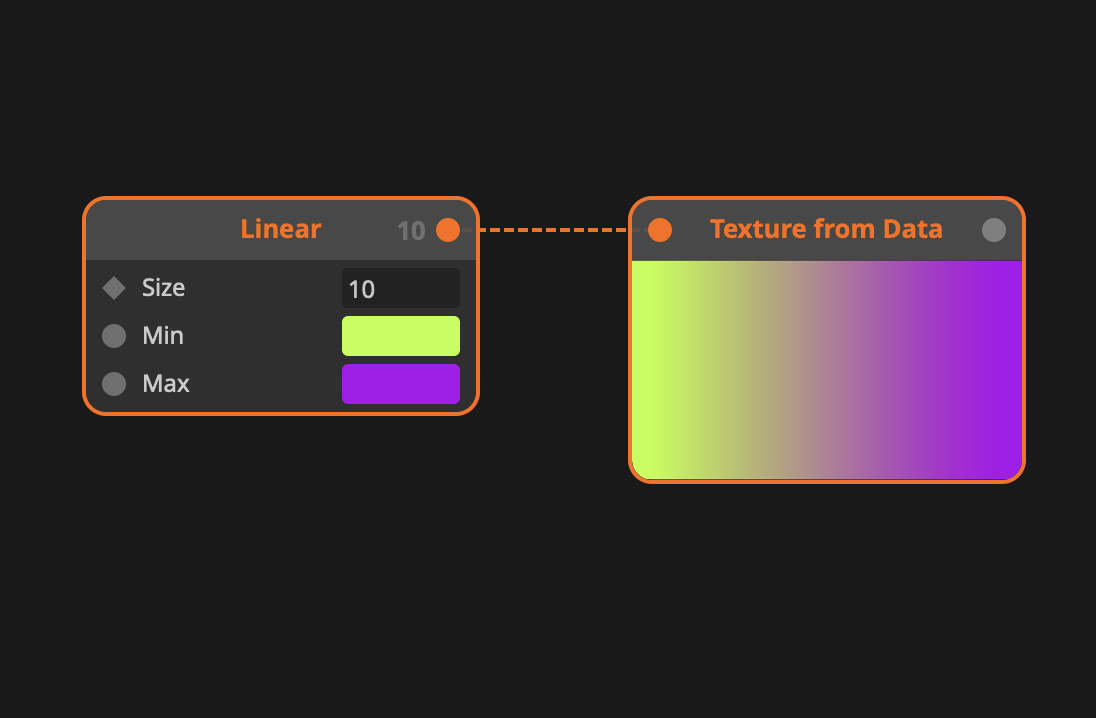 Cords carrying collections are dashed
Dynamic Collections
Most collections are static. Their size is set once and stays put, and the preview shows the exact number of values.
Dynamic collections can change size while the patch is running, up to once every frame. There is no single number to show, so Wire displays a tilde ~ instead.
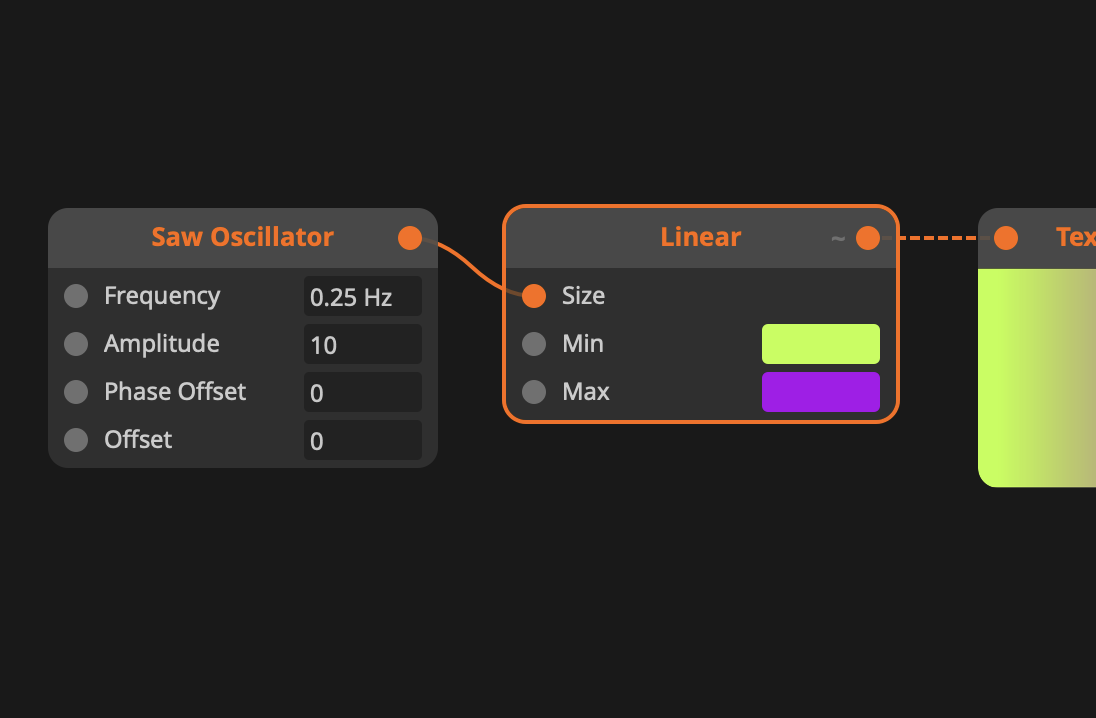 Modulating the Size parameter with a Saw Oscillator forces the Linear node to return a dynamic collection, as the collection size could now change every frame.
Modifying nodes
There are a few ways to change how a node looks and behaves.
All of them live in the right-click menu.
Expose Inputs
Right-click a node and select Expose Inputs to create interactive elements for its parameters. Each numerical input gets a value box, each toggle gets a boolean and each trigger gets a trigger node etc..
Exposed parameters can be accessed by the host of the patch.
This means you can use the Dashboard Panel in Wire to control them or use them as parameters in Arena and Avenue.
 Taking full control over the Sine node's parameters with Input nodes
Visibility
Not all features of a node are visible.
Some have only a few use cases, so we've hidden them to keep things tidy.
Right-click a node and go to Visibility to turn its inlets and outlets on and off.
You can also hide or show all of them at once.
Beyond cleaning up your patch, this makes nodes more readable — with the same inlets hidden across a chain, your blocks all end up the same size.
Thumbnails
Thumbnails show you what's happening at any point in your patch.
Right-click a node and pick the option you need to turn its thumbnail on or off, or to update it.
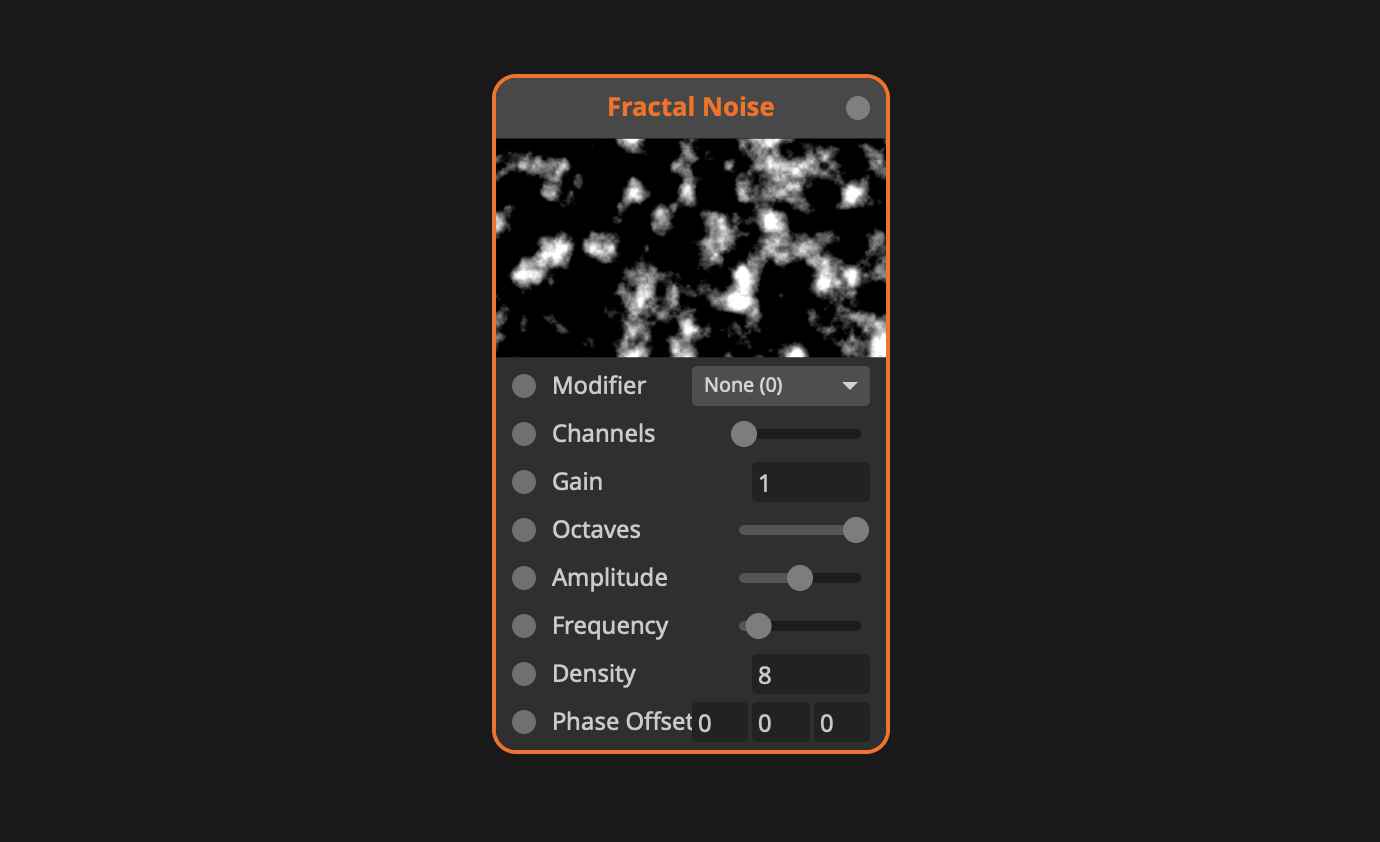 Node thumbnails can help you to create a visual signal path
Renaming Nodes
Right-click a node and select Rename to give it a name of your own.
Alternatively, double click the name of a node.
Useful when a patch has several nodes of the same type doing different jobs.
Keep the original class name recognisable where you can — a Multiply node called "Speed" is helpful, one called "Thing" is not.
Node Color
Right-click a node and go to Color to pick from eight colors: orange, blue, pink, purple, teal, red, yellow and green.
Color is the fastest way to show which nodes belong together. For larger groupings, a Comment node placed behind them works better.
Flow
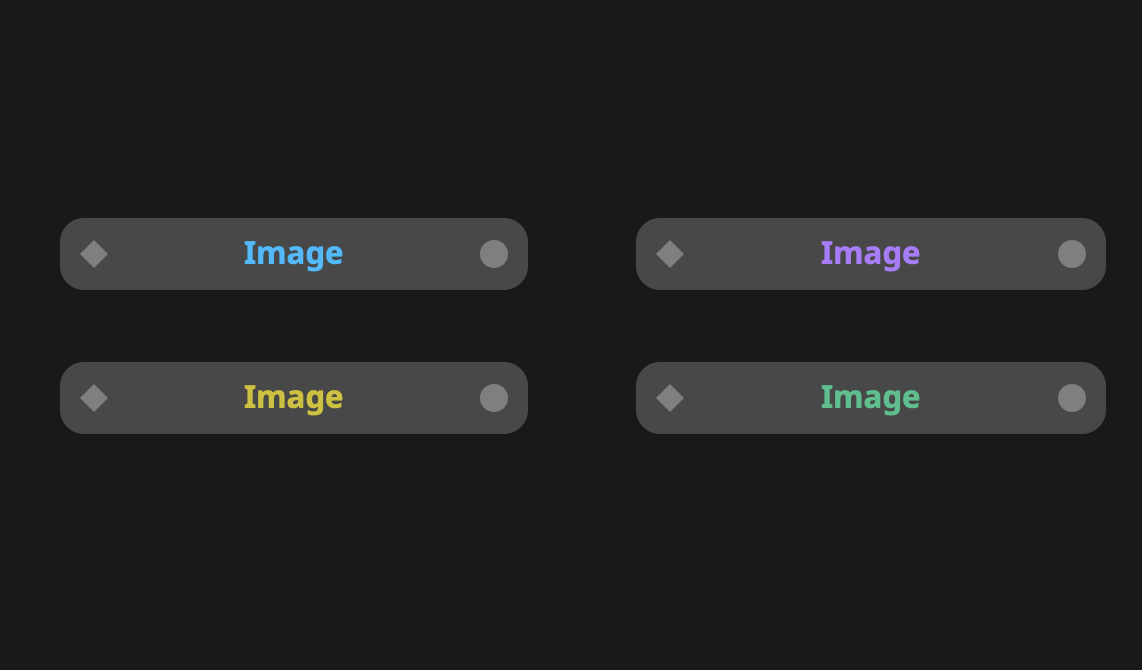
Data can flow in three ways: signal, event and attribute.
The flow type determines when data is transmitted.
Some nodes only work in one flow type, others can operate in several.
You rarely need to think about this as Wire usually picks the right variant for you.
What matters is understanding the difference between the three.
 Signal, Event and Attribute Flow
Signal
Signal flow is transmitted at frame rate.
It's the most up-to-date flow type and the most common in Wire.
This type is denoted by circular inlets and outlets.
Event
Event flow is transmitted when you trigger a node or when a value changes.
It's used for randomisation, sending and receiving MIDI data, and triggering nodes.
Events are independent from the frame rate, so multiple events can occur on the same frame.
This type is denoted by rectangular inlets and outlets.
Attribute
Attribute flow is only transmitted while the patch compiles, which means changing an attribute parameter forces a recompile. It's used to set resolutions, change node modes, adjust the size of a collection or create constants.
Attribute parameters cannot be animated in the host.
This type is denoted by diamond-shaped inlets and outlets.
Conversion
Event and attribute flow can always be connected to signal inlets.
To go the other way, use the OnChange node to convert signal flow to event flow.